Remote coding: desktop or Terminal?
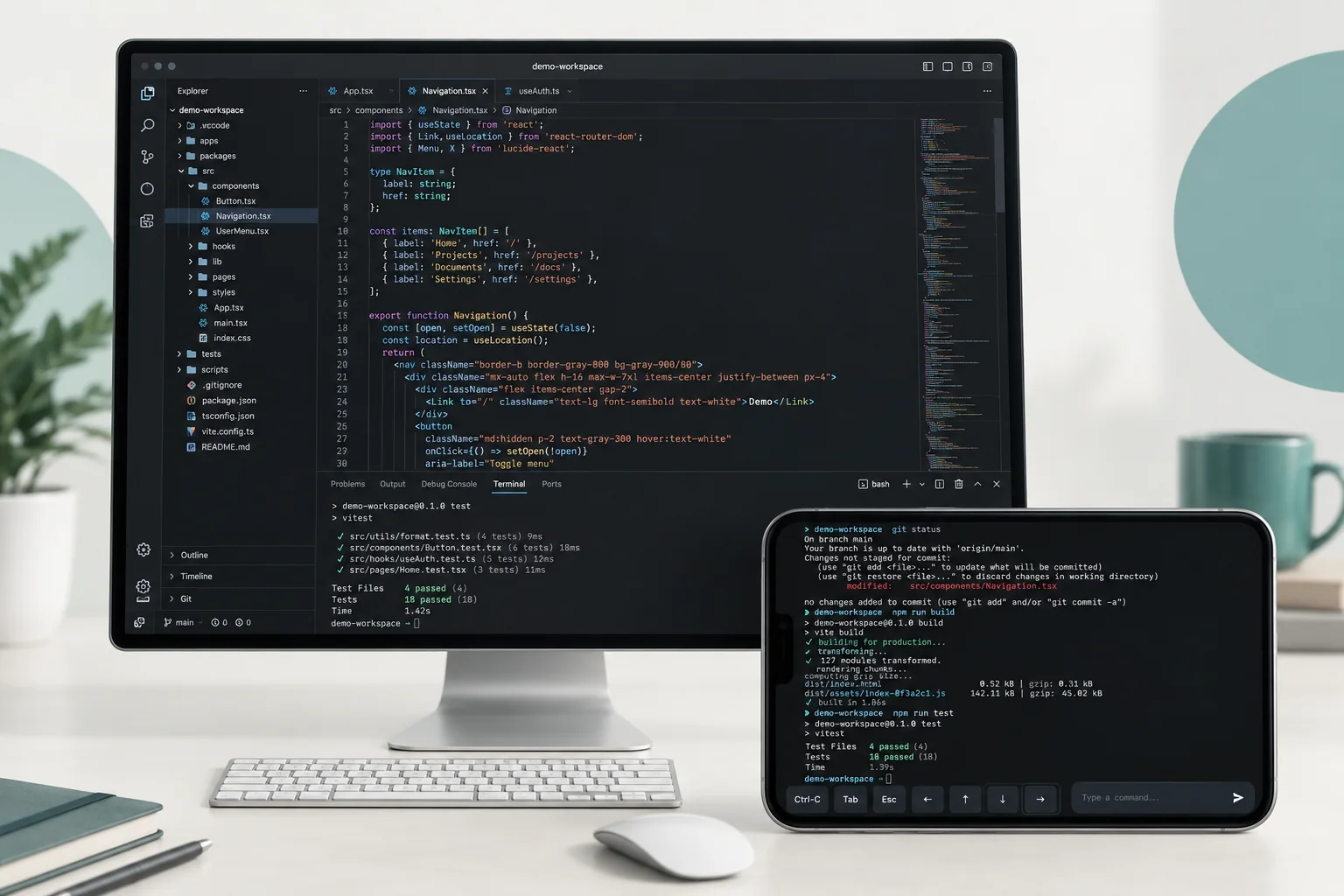
Remote desktop and Terminal solve different problems. Reach for the desktop when the work is visual — your editor, a browser preview, several windows at once. Reach for Terminal when you already know the command you want to run on the host. Either way you are using the remote computer’s own tools and files, so check which machine and which directory you are in before you change anything.
Use the desktop for visual work
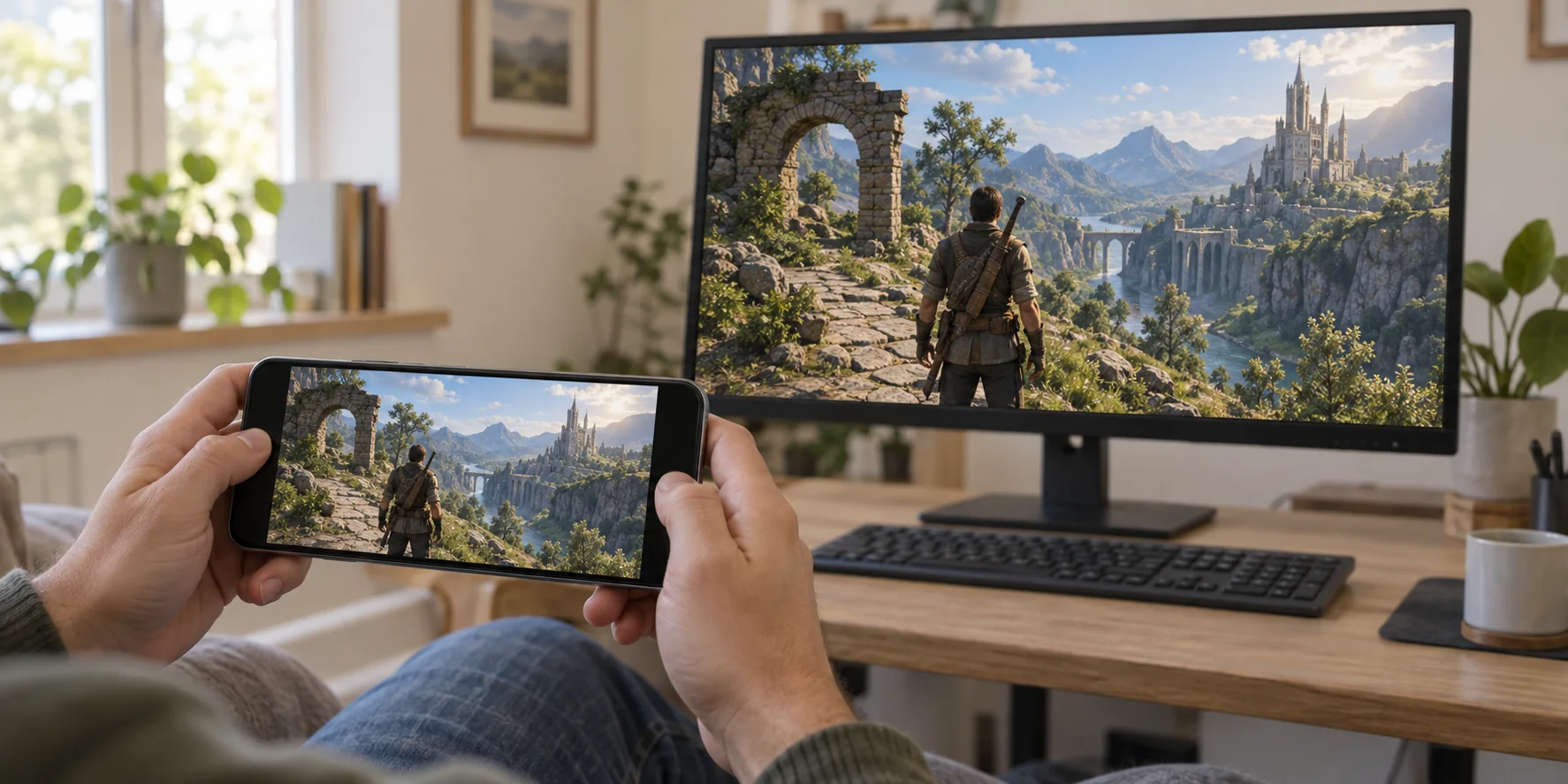
Pick a remote desktop session when the work has to be seen — an editor, a browser preview, two or three windows arranged the way you like them. Nothing moves: your workspace stays on the host, and you use the tools already installed there.
Screen Scaling is what keeps code legible on the controller. For anything longer than a quick fix, a keyboard and a pointer beat a small touch screen by a wide margin.
Use Terminal for a focused command
Open Terminal for a saved device and authenticate when prompted; that authentication covers the current session only. Everything you type runs on the remote computer, so look at which directory you are in before running anything that writes.
Terminal suits the case where you already know the next move — checking a project’s status, reading the output of something you ran earlier. Leaving the page closes the session, and a long-running process should not be assumed to survive that.
Check the result before disconnecting
Read the output, or check the change in the app, before ending access. Save anything open in an editor, and be clear in your own mind about which files on the host you just modified.
The computer has to stay awake and connected the whole time. If performance drops mid-task, open Session Stats, adjust Stream Quality for desktop work, and repeat the same action so the comparison means something.