Download a file from your remote computer
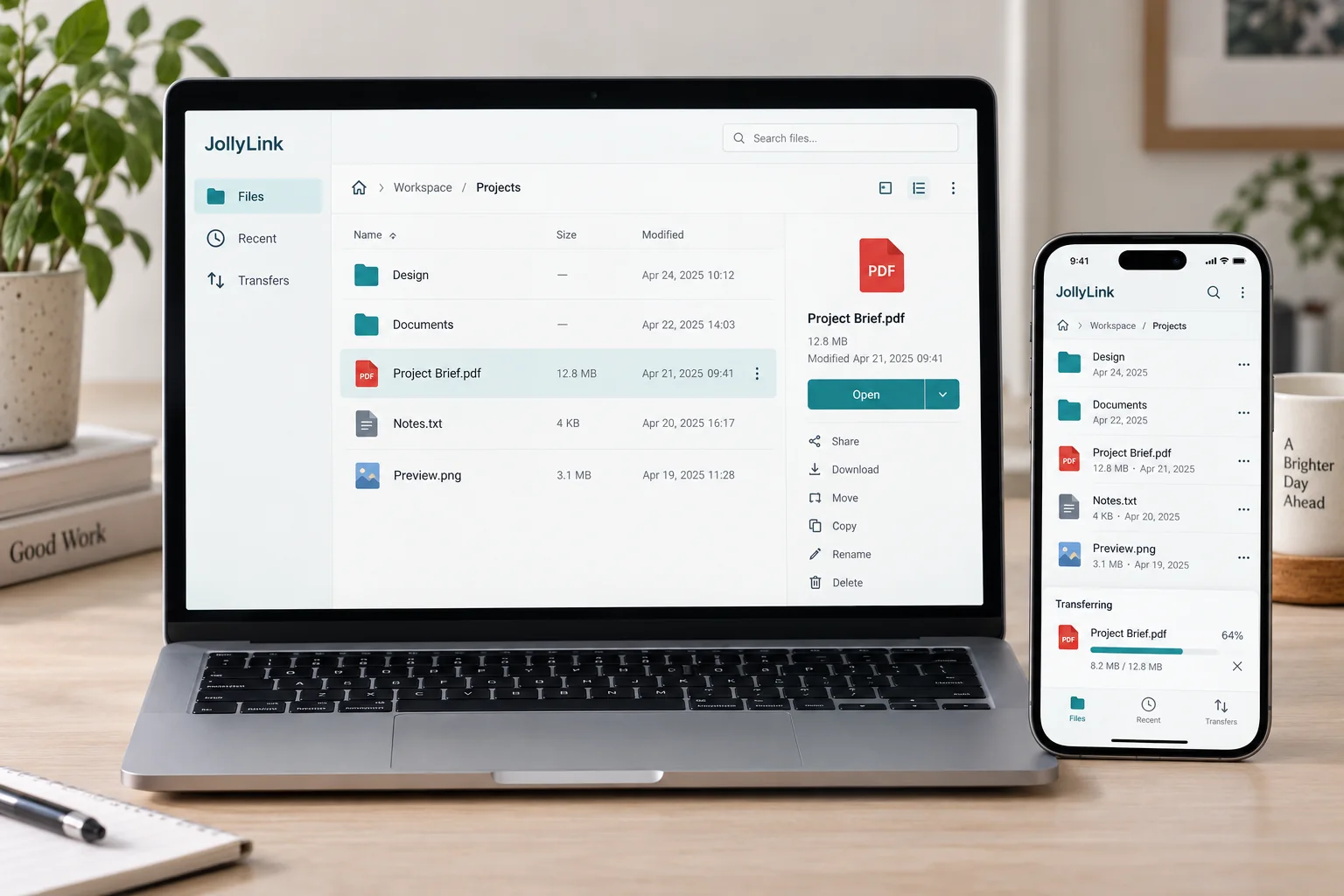
Files is where you browse the folders on a computer you have paired. Open it for a saved device or an active connection, switch to Remote, pick the document, and download it to whatever you are holding. Two things are worth remembering: the host has to be awake and online, and what you get is a separate copy that will not follow later edits.
Find the original on the remote device
Start by confirming the host is awake and online, because nothing below works otherwise. Open Files from the saved device or the active connection. It has two views, On This Device and Remote, and keeping track of which one you are in saves a lot of confusion.
Switch to Remote and work your way to the folder holding the document. Read the filename properly before committing to it, particularly when several near-identical versions sit side by side.
Download and check the local copy
Pick the remote file and download it. The connection has to stay up until the transfer finishes. Once it lands, open or preview it — that is the only way to be sure you took the file you meant to take.
- Open Files for the remote device.
- Switch to Remote and select the file.
- Download it to your current device.
- Preview the local copy or use the device share sheet.
Keep track of which copy you edit
What you downloaded is a separate copy, not a window onto the original. Edit it locally and you now have two versions, so decide in advance how the changes get back to where they belong. Nothing synchronizes on its own afterwards.
Be deliberate about where a document goes when you pass it on. And when the job is done, close the remote session — a sensitive copy sitting on a phone is worth removing once it has served its purpose.