Four checks before working remotely
Four things decide whether you can really work from somewhere else: whether the computer stays awake and online, whether your apps are usable at a distance, how the connection behaves on the network you will actually be on, and what happens when you finish. Every one of them is easier to check now, while the computer is still in front of you. Set up and test unattended access here too, on a computer you own.
1. Keep the host available
Three conditions have to hold the whole time you are away: the host is awake, it is on the internet, and JollyLink is running. Power and sleep settings are where this usually breaks, so open them and decide what should happen when the lid closes.
If you want unattended access to a computer you own, set it up now rather than later. Guard whatever credentials that access uses, and make one test connection while the machine is still within arm’s reach.
2. Check apps and display settings
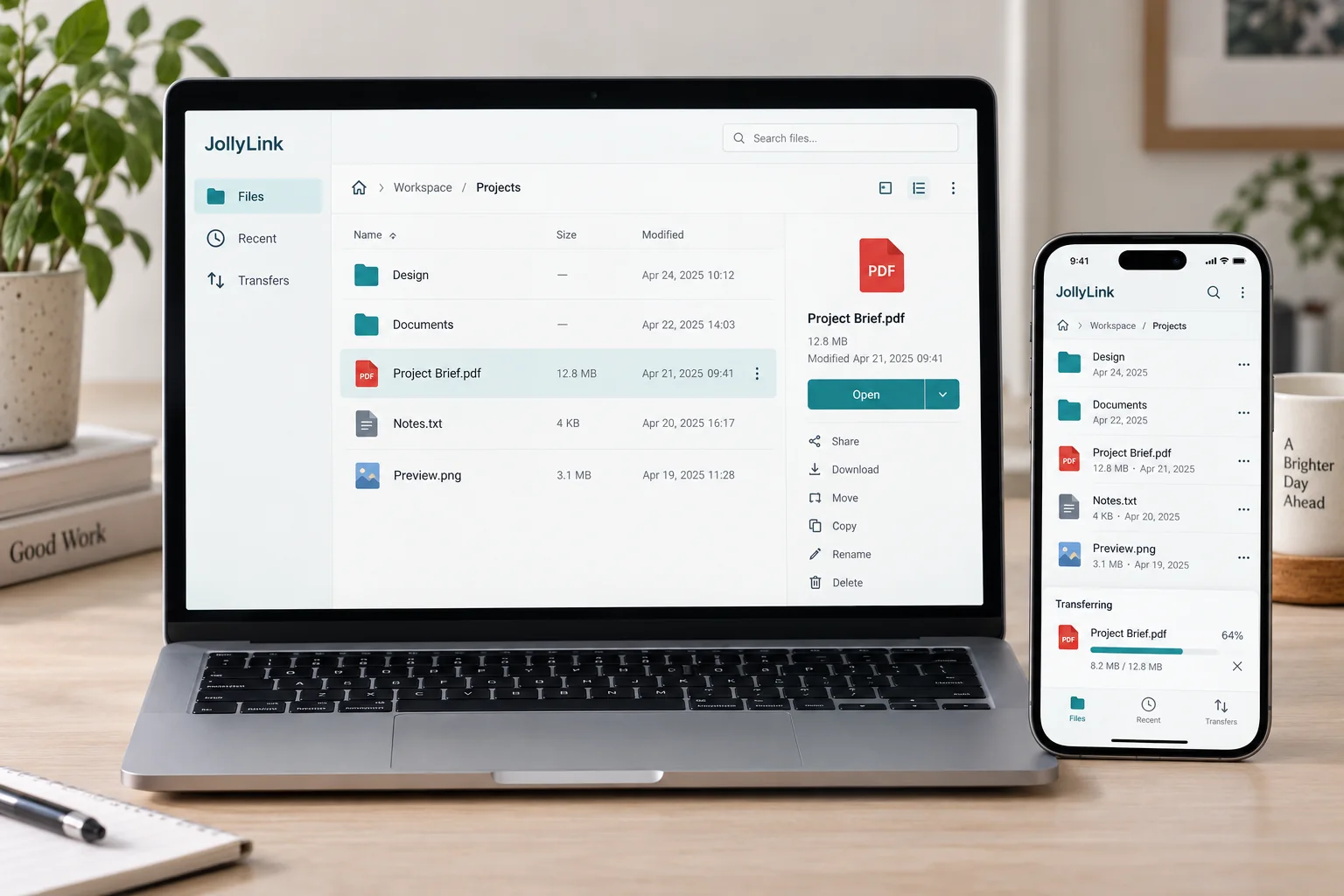
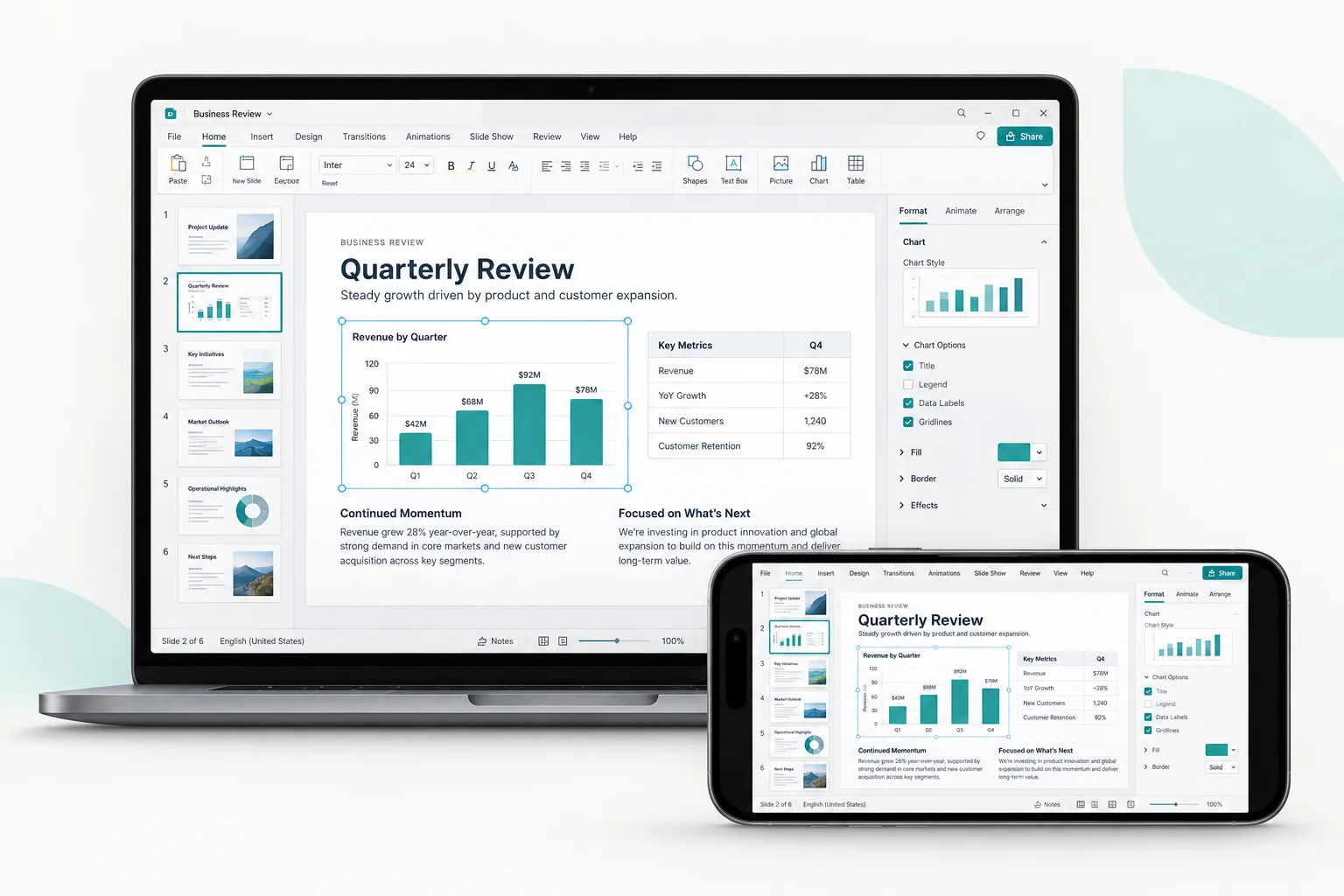
Open the apps and files you expect to need, then actually use them from the controller — read a paragraph, open a menu, click something small. Anything hard to hit or hard to read is usually a Screen Scaling question, and Remote Preferences is where you answer it.
3. Check the connection you will use
A session that works at home tells you the setup is sound. It tells you very little about the café or hotel network you will be on tomorrow. When the picture is slow to update, lower Stream Quality and repeat the same task, so you are comparing like with like.
4. Plan how to finish
Decide what the clipboard should do for the kind of work you are doing, and check whether the remote computer locks itself when you disconnect. Save your work in the app first — ending a connection is not the same as closing a document.
Anything you genuinely cannot do without should also exist locally. Remote access lasts exactly as long as the host and the network between you stay reachable.