How to play your PC games remotely
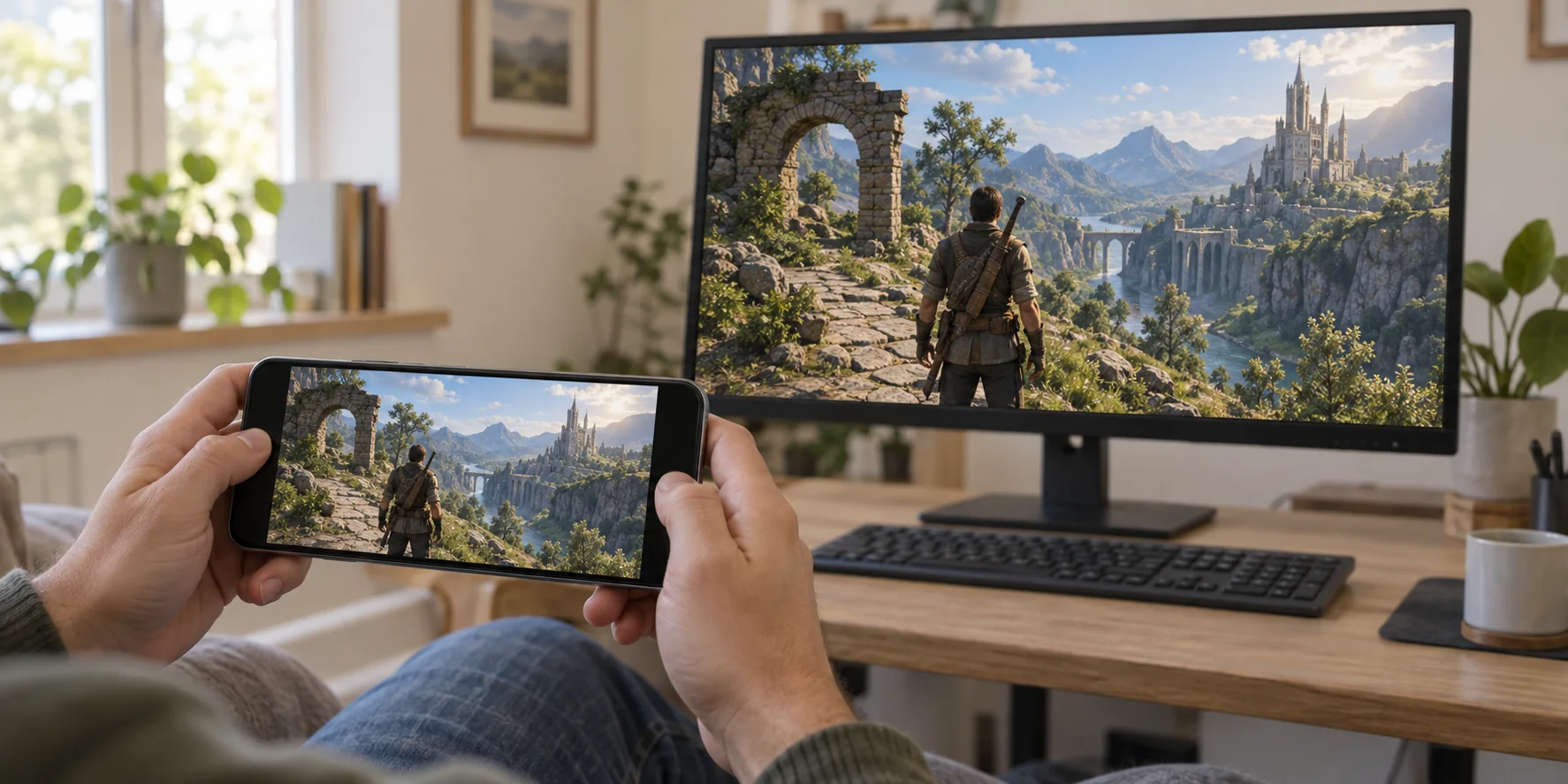
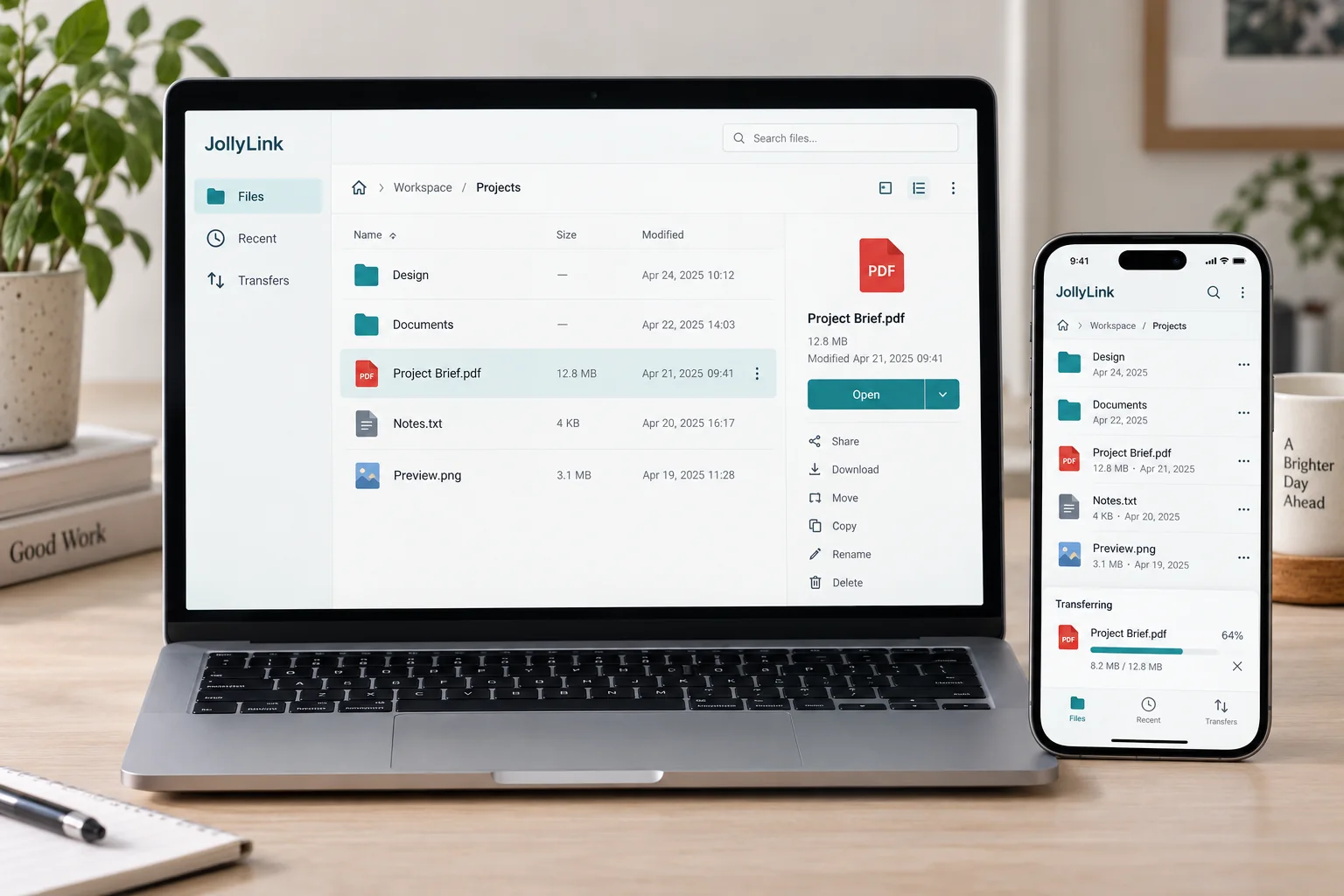
The game stays installed on the computer that runs it. JollyLink sends that computer’s picture to your phone, tablet, or another computer, and carries your controls back the other way. So the host has to be awake, online, and running JollyLink, and the connection has to be approved there. Test your controls and the stream quality before you settle in for a longer session.
Start at the computer
Open the game on the computer itself first. Let any updates finish, and watch it run once so you know the game itself is not the problem later. Then leave that computer awake, online, and running JollyLink — remote access does nothing if the host has gone to sleep.
Make the first connection while both devices are within reach. Approval and permission prompts appear on the host, and answering them is far easier when you are not in another room.
- Install JollyLink on both devices.
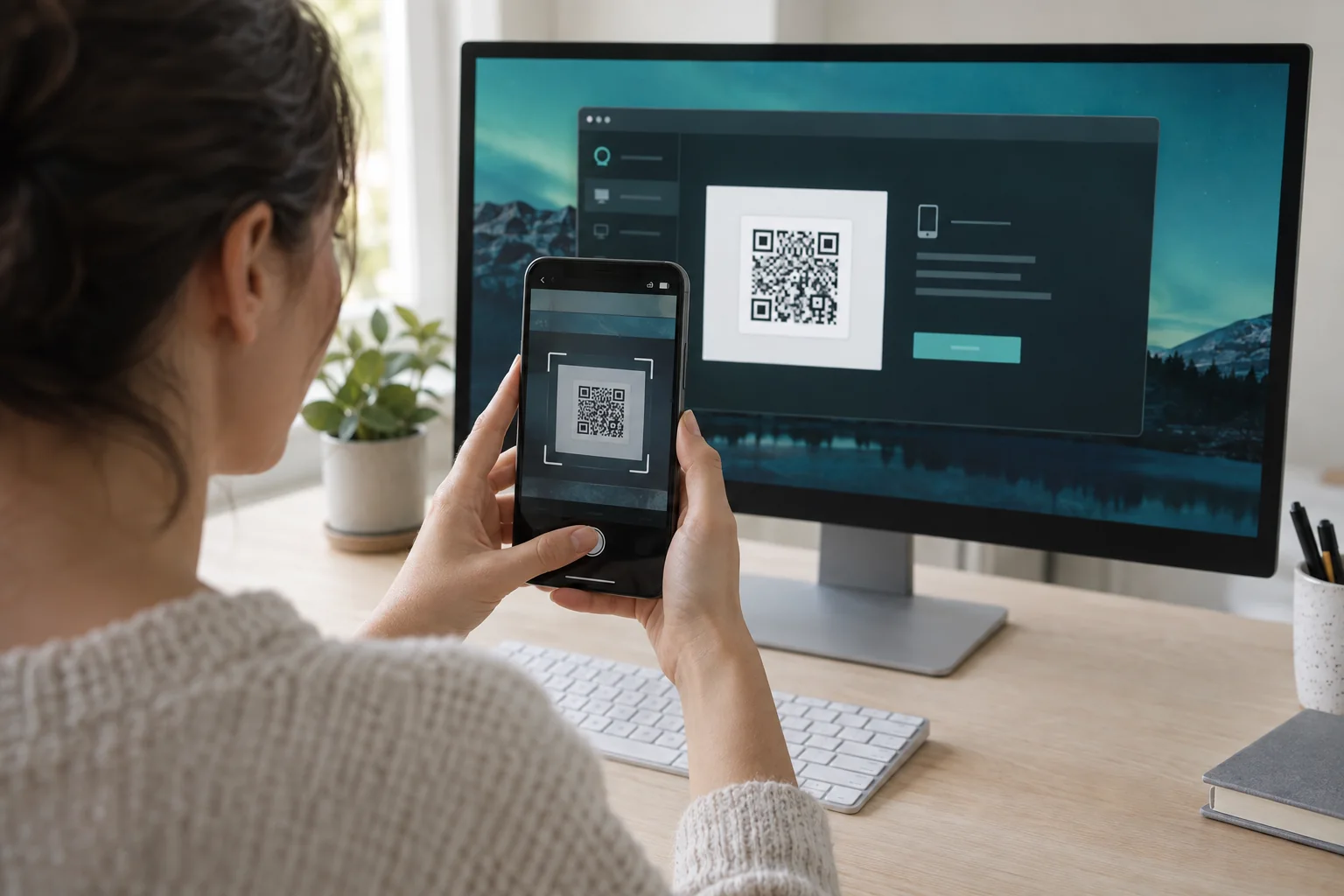
- Enter the host Device ID or scan its QR code.
- Approve the connection on the host, then open your game.
Find controls that fit the game
Pair a compatible controller with the device you are playing from. A keyboard and mouse work too, and the on-screen buttons are there when you have neither. Which of these are available depends on your devices, your app version, and the game itself.
Before a longer session, run through the inputs you rely on most — movement first, then menus. A button that does nothing is not always the connection: the game keeps its own input settings, and they may not recognize the device you just paired. On a small screen, adjusting Screen Scaling is usually what makes menus readable again.
Tune for a steady session
Delay has two cheap fixes worth trying first. Lower Stream Quality in Remote Preferences, and pause any large file transfer competing for the same connection. Session Stats gives you numbers to compare before and after.
Change one setting at a time, or you will not know which one helped. Picture quality and responsiveness come out of the combination of both devices, the network between them, and the game — no two setups feel quite the same. Do this testing on the network you will actually be using, not the one you happen to be on now.