Connect to your computer with JollyLink
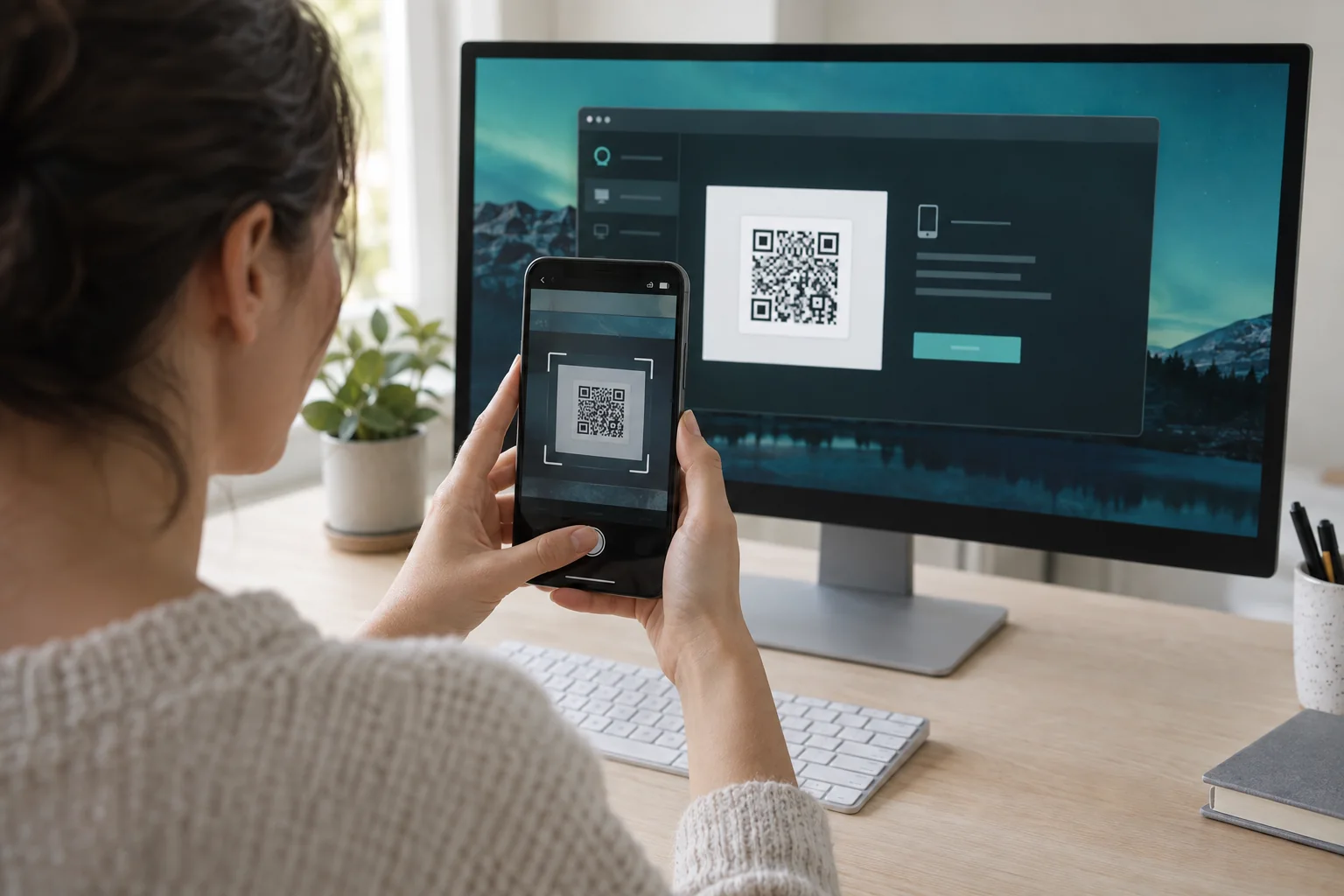
A connection needs two devices running JollyLink. The host is the computer you want to reach; the controller is the phone, tablet, or computer you connect from. You enter the host’s Device ID on the controller, or scan its QR code, and then approve the request on the host itself. Keep both devices nearby the first time, so you can answer the permission prompts as they appear.
Get both devices ready
Install JollyLink on the host computer and on the controller. Open it on both, and confirm each one actually has a working network connection before going further.
The host has to stay awake for the whole session. A closed laptop lid or a sleep timer will cut access even while the controller sits there perfectly online.
Connect with the host’s Device ID
JollyLink shows a Device ID on the host. Type it into the controller, or point the controller at the host’s QR code. Either way the request lands on the host, where you should read it before approving.
- Find the Device ID on the computer you want to access.
- Enter that ID on your controller, or scan the QR code.
- Approve the matching request on the host.
- Check that you can see the desktop and move the pointer.
Check permissions if the screen is blank
A blank screen on a Mac is almost always a permission. Open JollyLink’s permission center and allow Screen Recording — without it the remote device connects but sees nothing. Accessibility or Input Monitoring is the separate one that lets you control the Mac rather than only watch it. Local Network access is separate again, and covers discovering nearby devices.
If it still fails, go back to the host and check that it is online and showing Ready. Then read the Device ID once more, since it is an easy thing to mistype. Reconnect once the network and the permissions are both in place.